"Why does the AI pronounce 'GIF' with a hard G?"
"Please, just say it with a soft G!"
Hello! This is Sonetho. ⚡
Ever felt frustrated when AI mispronounces a brand name, a technical acronym, or even your favorite creator’s handle?
Are you still manually hitting Ctrl+F in your script to swap "GIF" for "Jif" or "NVIDIA" for "En-VID-ee-uh"?
You can cross that tedious busywork off your list right now.
With ElevenLabs' 'Pronunciation Dictionary', you only need to register your custom rules once.
From then on, you can input your script as-is, and the AI will handle the pronunciation perfectly every single time.
🛠️ What is a Pronunciation Dictionary?
It’s a feature that allows you to set ground rules for how the AI articulates specific words.
There are two primary ways to do it:
- Alias: The straightforward approach. You simply map a word to how it should sound.
(Example: GIF → Jif) - Phoneme: For power users. Uses the International Phonetic Alphabet (IPA).
(Example: NVIDIA → ɪnˈvɪdiə)
※ Note: IPA/CMU phonemes are fully supported on Flash v2.5 and v3 models. Other models may ignore them.
🚨 A Note from the Editor (Optimize your workflow!)
A common pitfall: When using the Alias field, ensure the "Replace with" value is written phonetically in English. If the AI isn't quite capturing the nuance, try spelling it exactly as it sounds to your ear.
(※ Please don't confuse this with the Phoneme tag — they are different inputs!)
- ❌ Unreliable: Replace with → Jif (if the pronunciation feels inconsistent)
- ✅ Recommended: Replace with → Jiff (or use phonetic spelling to force the desired output)
🚀 Master your pronunciation in 1 minute
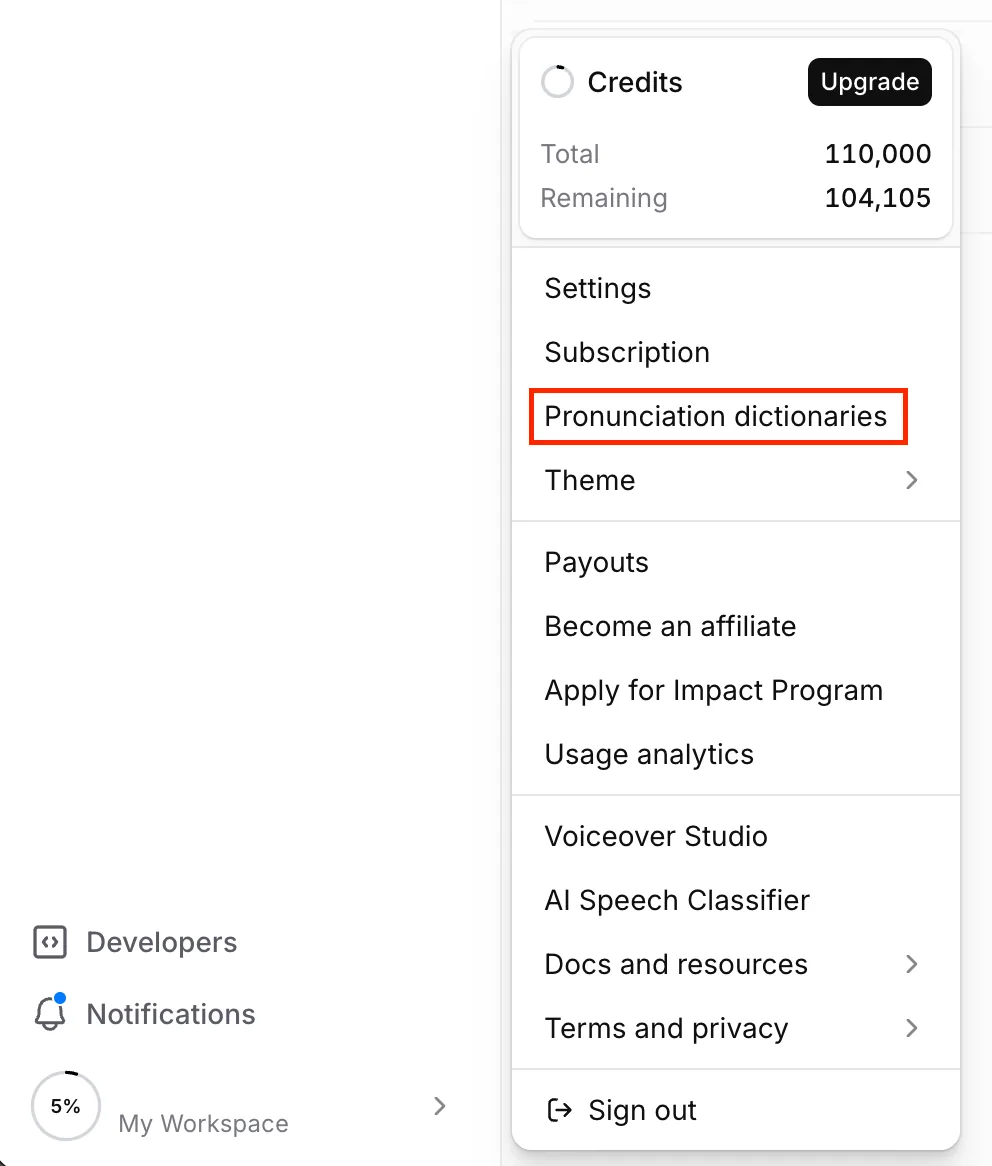
1. Access Pronunciation Dictionaries
Click on your profile icon in the bottom left corner to open the menu.
Select [Pronunciation Dictionaries].
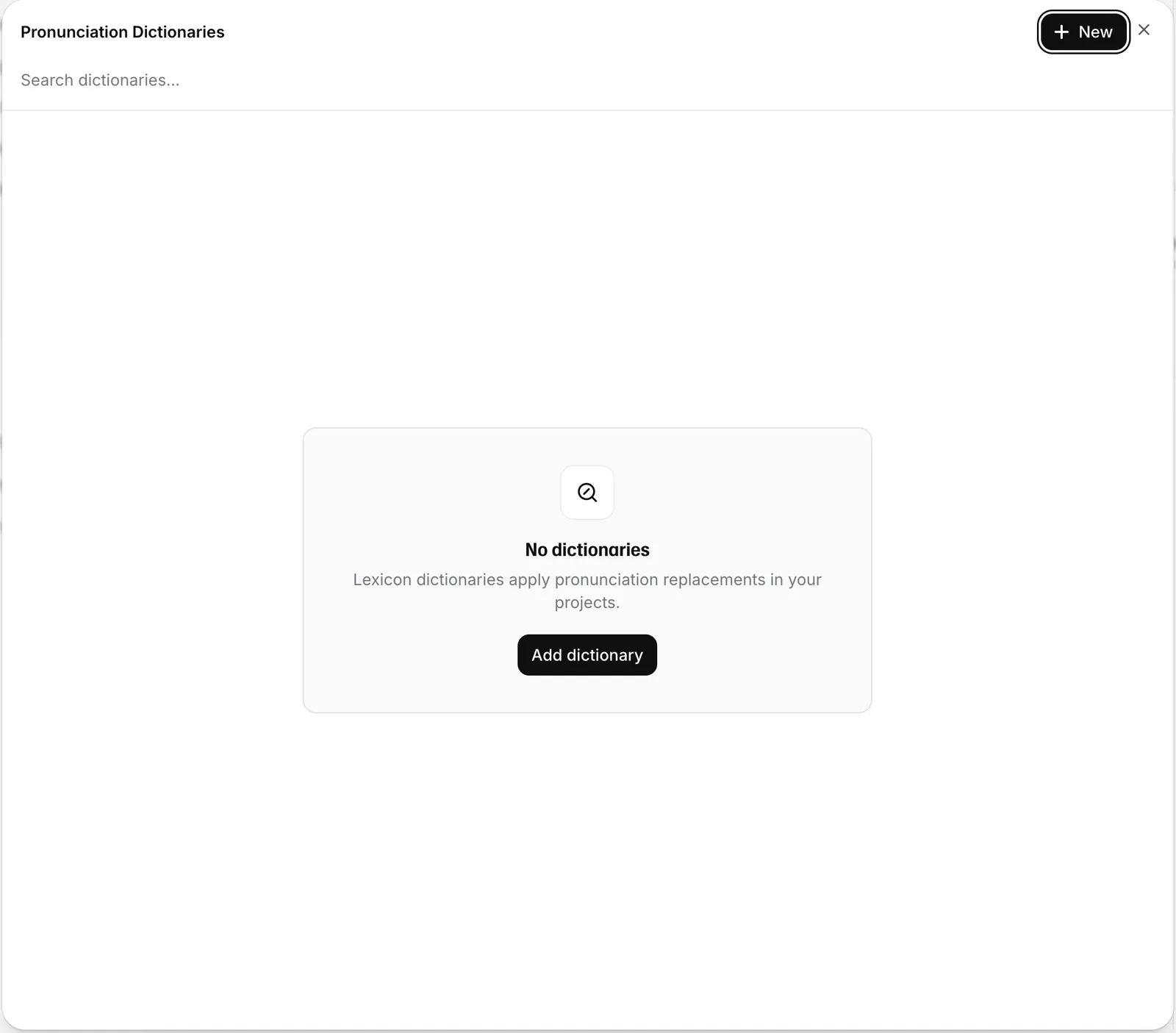
2. Add a Dictionary
Click the black [Add dictionary] button located in the center of the screen.
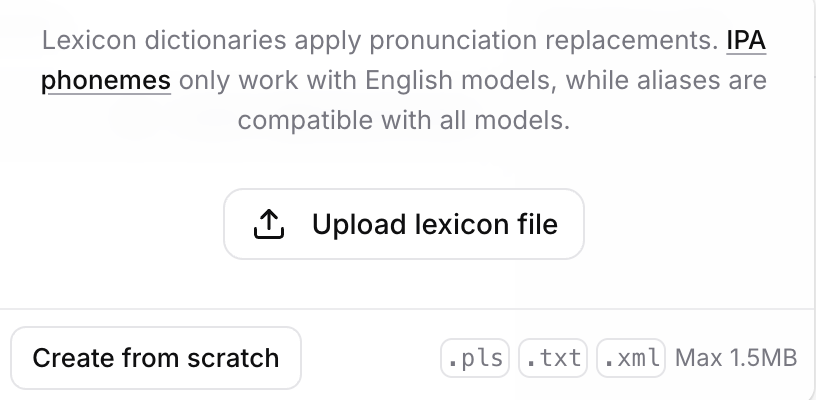
3. Create from scratch
When the modal appears, look to the bottom left.
Click [Create from scratch].
You can name your dictionary whatever you prefer (e.g., 'My Brand Names').
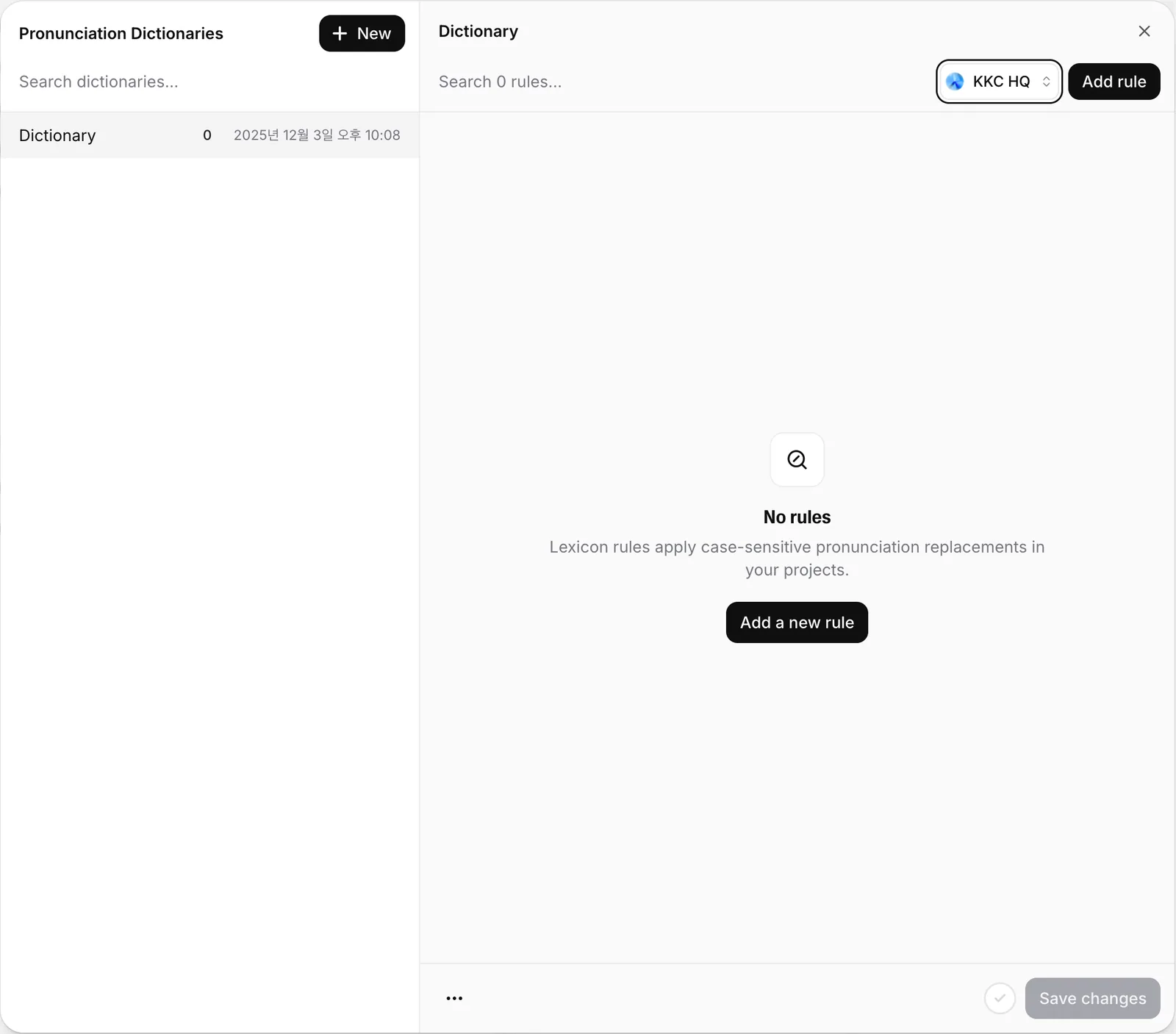
4. Add a Rule
Once your dictionary is created, click [+ Add a new rule] and fill in the fields:

- Input (Word to replace): GIF
- Output (Replace with): Jiff
- Select Alias, save your changes, and you're done!
✨ Result: Now, whenever your script includes the word "GIF," the AI will pronounce it "Jiff" automatically.
💡 Pro-tip: "Not sure how to spell it phonetically?"
Stuck on how to get the AI to say a complex word correctly?
Ask an LLM like Claude or ChatGPT!
"How can I phonetically spell 'NVIDIA' to ensure it's pronounced correctly?"
→ AI response: En-VEE-dee-uh
Copy that into your Output field and hit [Play] to test it out.
Once you've saved your rule, it's time to put it to the test. Head over to ElevenLabs Text to Speech, paste your script, and hear the magic in real-time using the preview player.
🎙️ Test your dictionary in Text to Speech →Wrapping up
Stop stressing over AI mispronunciations. With 'Pronunciation Dictionaries,' you have total control over how your scripts are voiced.
Remember: Use phonetic English spellings for Alias!
Go ahead and create your custom dictionary today.
❓ Frequently Asked Questions (FAQ)
Q1. What is the Pronunciation Dictionary?
A. It is a feature that teaches the AI how to pronounce specific words.
Once you register a rule, the AI will automatically apply it even if you use the original text.
This eliminates the need to manually find and correct words in your script.
Q2. Should I use Alias or Phoneme?
A. For most cases, Alias is sufficient.
It is the easiest method because it simply maps a word to how it should sound.
Phoneme is intended for experts who use the International Phonetic Alphabet (IPA).
Q3. Can I enter Korean in the Alias field?
A. If the voice is set to read in Korean, Korean characters will work as expected.
However, if you want clear English pronunciation or if the results are inconsistent, it is more stable to enter the spelling phonetically in English.
For example, you would enter ITSUB as Eat Sub or It Sub.
Please note that fields only accepting English letters refer to the Phoneme tag, so do not confuse the two.
Q4. My IPA entry is not being applied.
A. IPA and CMU phoneme notation only work with Flash v2 and v3 models.
Other models will ignore these rules.
You need to use v3 if you wish to apply phoneme notation to non-English languages.
Q5. Where do I create a dictionary?
A. Click your profile icon in the bottom-left corner to open the menu.
Go to [Pronunciation Dictionaries] and click [Add dictionary].
When the file upload window appears, select [Create from scratch] in the bottom-left corner.
Once the dictionary is created, click [+ Add a new rule], enter the original word and the desired pronunciation, select Alias, and save.
Q6. I am not sure how to write the English spelling.
A. Ask ChatGPT or Gemini for help.
For example, if you ask them to write NVIDIA phonetically, they will give you a response like En-VEE-dee-uh.
Simply enter that phonetic spelling into the Output field and use the preview to verify it.
Happy creating,
Sonetho ⚡